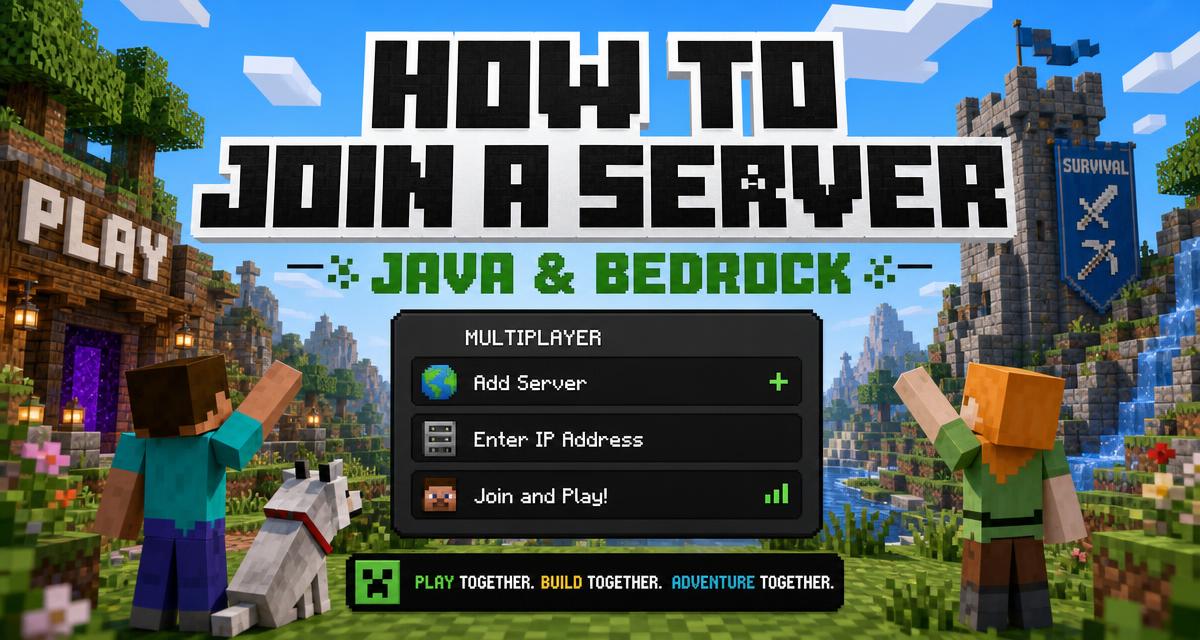
Playing Minecraft on a multiplayer server is where the game really opens up - shared worlds, custom gamemodes, active communities, and thousands of players to build or compete with. If you have never connected to a server before, the process can look confusing the first time, but it only takes a minute once you know the steps. This guide walks you through joining a server on both Java and Bedrock editions.
What You Need Before You Start
To join any server you need three things: a copy of Minecraft (Java or Bedrock), a stable internet connection, and the server's IP address. The IP is just the address that tells your game where to connect, and every server on a server list publishes its own. Some servers also list a separate port, which usually only matters on Bedrock.
It also helps to know which version the server runs. Most modern servers support a range of versions, but if your game is far older or newer than the server, you may not be able to connect until you match it.
Joining a Server on Minecraft Java Edition
Java Edition uses a simple built-in server menu:
- Launch Minecraft and wait for it to fully load to the main menu.
- Click Multiplayer.
- Click Add Server.
- Give the server any name you like, then paste its IP address into the Server Address field.
- Click Done, select the server from your list, and hit Join Server.
That is it. The server will appear in your list from now on, so you only have to add it once. If it shows a red connection icon, the server may be offline, full, or on a different version than your client.
Joining a Server on Minecraft Bedrock Edition
Bedrock (the version on phones, consoles, and Windows 10/11) works almost the same way, with one extra field:
- Open Minecraft and press Play.
- Go to the Servers tab.
- Scroll down and select Add Server.
- Enter a server name, paste the server's IP into the Server Address field, and enter the Port (Bedrock servers usually use
19132). - Save, then select your server and press Play to connect.
Bedrock lets you play across phones, tablets, consoles, and PC, so a cross-play server is a great choice if your friends are on different devices.
Cracked vs Premium: A Quick Note
Some servers are "cracked," meaning they let you join without a paid Minecraft account. Others are "premium" and require a licensed account. If a server won't let you in and mentions authentication, that server is premium-only. You can filter specifically for servers that suit your setup on most server lists.
Troubleshooting: Can't Connect?
If you can't join, run through this quick checklist:
- Wrong version - update or downgrade your Minecraft to match the server's supported versions.
- Typo in the IP - copy and paste the address rather than typing it by hand.
- Server is offline or full - check the server's live status and player count before joining.
- Restart - a quick restart of your game or router clears up most one-off connection errors.
Ready to Find a Server?
Now that you know how to connect, the only thing left is choosing where to play. You can browse thousands of Java and Bedrock servers - ranked by real player votes and updated daily - over at Minecraftservers-list.com. Filter by gamemode, version, or edition, copy the IP with a single click, and jump straight into your next favourite world.